
404 Redirection SOP
Step-by-Step Guide: Handling 404 Redirects for a Client
Step 1: Identifying 404 Errors in Google Search Console
- Log in to Google Search Console.
- Select the correct property (client’s website) from the list.
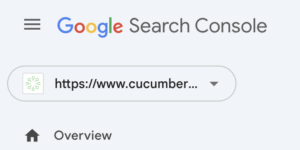
3. In the left panel, scroll down to Pages.

4. Locate any reported 404 errors under the Not Found (404) section.

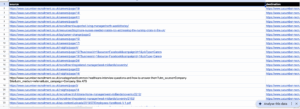
5. Click Export and download the report as a spreadsheet.

Step 2: Preparing the Redirect Spreadsheet
- Open the exported sheet and create four columns:

- Source: List of 404 error URLs from the Google Search Console report.
- Destination: The URLs where the 404 pages should redirect.
- Status (Tick Box): A checkbox to confirm when a redirect has been successfully implemented.
- Notes: Any additional information, such as issues encountered during redirection. Each month should have its dedicated sheet within the master sheet. This ensures clarity with new errors popping up after validation.
Step 3: Implementing Redirects in the CMS (Using Rank Math)
- Log into the client’s CMS (e.g., WordPress).
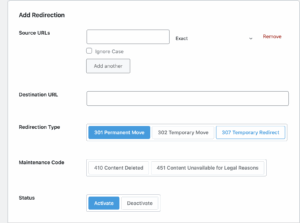
- In the left panel, navigate to Rank Math > Redirections.
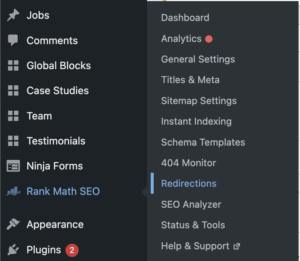
- Click Add New to create a new redirection.
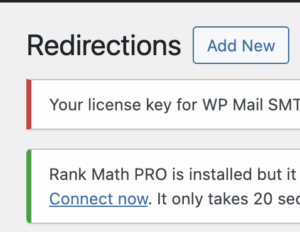
- At the top, insert the Source URL (the 404 URL from your sheet).
- Below, insert the Destination URL (where the 404 page should redirect to).
- Click Add Redirection to save.
Step 4: Testing Redirects
- After adding a redirection, locate it in the log.
- Click View to test if the redirect works properly.
- If successful, return to the spreadsheet and check the corresponding tick box under the Status column.
- If the redirect fails, write a note in the Notes column explaining the issue and investigate further.
Step 5: Final Review
- Ensure all 404 errors have been processed and redirected.
- Revisit the Google Search Console after some time to confirm that the issues have been resolved.
- Monitor for any new 404 errors periodically and repeat the process as needed.
By following these steps, you can effectively manage 404 errors and ensure a seamless user experience for your client’s website.
Step 6: Communication
Once all prior steps have been followed and confirmed, all reported 404’s have been redirected, unless indicated otherwise.
Communicate completion of tasks internal and external:
Internal: Through the client-specific Slack channel.
External: Client-specific Basecamp, Always create a new thread for all new tasks actioned.