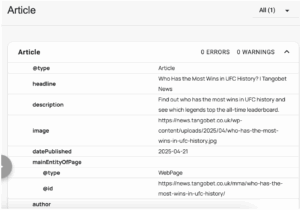
Add Article Structured Data to a WordPress Post Using a Custom Schema Block
Add Article Structured Data to a WordPress Post Using a Custom Schema Block
Generate Article Structured Data
Go to TechnicalSEO Schema Markup Generator.
From the dropdown, select Article.
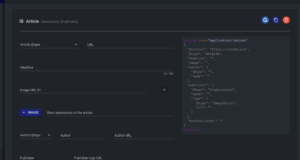
- Fill in the article details
Enter the relevant information for your post:
-
- Article Type: Select Article Schema
- URL: The full URL of the article
- Headline: Use the meta title of the article
- Author: Add the author’s full name
- Image URL: Use the featured image URL
- Short description of the article: Use the meta description of the article
- Author Type: For articles on Tangobet, we typically use ‘Article’. Use this for general content that doesn’t clearly fall under blog or news. It’s the safest and broadest option.
-
- Author: Add the author’s full name. This is the person who published the article / the login you used to publish the article
- Author URL: We can leave this field blank. I have tested this, and the article schema pulls through and has no errors. The author’s name is the important field.
- Publisher: Use your client company name which we are posting on, i.e. Tangobet
- Publisher Logo URL: Go to the homepage of the site, right click the logo, hit ‘open image in new tab’. The URL that opens from the logo can be copy and pasted into this field.
- Date published: The date the article was published on in US format: month/day/year , i.e. 21/04/25
- Date modified: We can leave this field blank, I have tested this, and the article schema pulls through and has no errors.
- Test the structured data
We need to test the structured data before applying it to the site to make sure there is no errors.
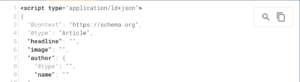
To do this, on the technicalseo.com structured data page, which we just filled in, on the right-hand side, you should see the blue ‘G’ logo above the code.
Click this, and select rich results test from the dropdown.
This will take you to the https://search.google.com/test/rich-results
Hit ‘TEST CODE’ below the code block.
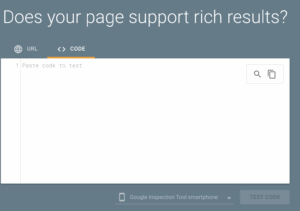
Once the test has completed, you will see on the right hand side that there are no critical issues detected. If there are critical issues, go back and review the previous steps.

3 Add Schema Code to WordPress Post
3.1 Log in to WordPress
Go to your website’s WordPress admin dashboard.
2.2 Edit the target post
Navigate to Posts in the left menu.
Find and click Edit on the post you want to update.
2.3 Insert into the Custom Schema Block
In the post editor, scroll to the custom schema block (typically at the bottom).
2.4 Paste your Article schema
Paste the copied JSON-LD Article code into the schema field. We should do this by copying the code directly, hitting the ‘copy’ button next to the blue ‘G’ which we previously used.

We should only ever copy structured data through this button. Avoid dragging to highlight, copy, and paste, as we can make errors when doing it with this method.
Make sure the <script type=”application/ld+json”> tags are included.
Click Update or Publish to save your changes.
- Test Schema Markup
3.1 Validate your schema
Go to https://validator.schema.org/
Paste in the URL of your published post.
Click Run Test.
Check that your schema is recognised under “Detected structured data”.
There should be no errors or critical warnings. If there are, go back and correct them in the schema block.