Adding FAQ Schema to a WordPress website
What is FAQ Schema Mark Up?
FAQ schema is specialised markup you can add to a webpage’s code that contains a list of questions and answers. Google then reads this markup and uses it to generate a rich snippet.
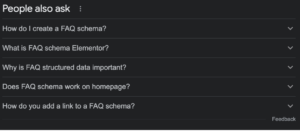
The piece of code added to the website enables Google to understand what your question and answers are and ultimately if done correctly, it will appear in the “People also ask” section
How do we add FAQ Schema to WordPress?
1. Open the CMS (Content management system)
2. Locate and open the page you wish to add Schema to.
Schema can be applied to any landing page or blog post, so long as the website has been configured correctly. There are a number of simple checks for anyone to understand if a website has been configured to allow FAQ Schema to be added that we will look at in the next step.
3. Understand if you can add Schema to the page
Scroll to the bottom of the page and you should see the below feature. If this is present, this means that you can add FAQ schema to the website. If it is not present, please escalate for investigation

4. Open up the Schema generator tool
You can add the json code to the website manually, however, it is far more efficient and far more accurate to add it using a third-party tool. Click this tool and open it in a separate window
5. Navigate to the correct area of the tool
You should be presented with the screen screenshotted below. The left-hand side should be clear but leave ALL JSON code in the box. This is prepopulated and is needed
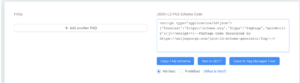
6. Copy and paste your FAQs across
This is a copy-and-paste job, the most important piece to note is that your FAQs are correct and accurate. They should be at the highest standard. The reason for this is that the whole process needs to be replicated if changes are made to the FAQs at a later date. You will notice when you add the content on the left, the JSON file on the right grows. Don’t edit this file!
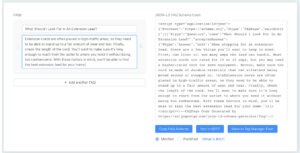
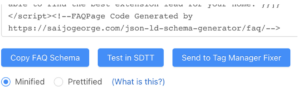
7. Copy and paste your JSON File
You should now copy your JSON file to add to your WordPress website. This is done as below.
8. Copy and paste your JSON File to the CMS
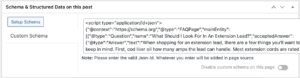
Once your JSON file is copied, you need to add this to WordPress.
8.2 Once you click “Custom Schema” the window below will open

8.3 simply paste your JSON file directly into the window. Note: you do not need to make any changes to.
9. Publish your FAQ schema
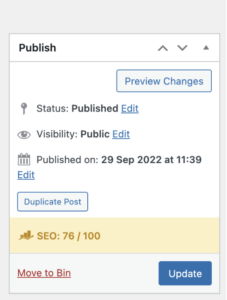
Once you are happy with your FAQ JSON file, navigate back to the top and hit “Update” or in some cases “Publish”